
Which app for a DIY wedding slideshow?
5 tools compared
By Dear Ever|Published: |Sources checked: 11 October 2026
Designing page by page on a computer? Canva. A timeline with free 1080p export? Clipchamp. On an iPhone or Mac? Try iMovie first. Templates on your phone? CapCut. Quickest template route and happy to pay to remove the watermark? Animoto. All five can make a wedding slideshow. The differences are your device, how much detail you want to control, and whether the free plan can export a file fit for the reception screen.

Published by Dear Ever. We compare tools for a photo-based slideshow of about 3–4 minutes played at a wedding reception. Prices and free-plan limits come from each official page, in US dollars; actual charges may vary by region and tax. We have not timed each tool ourselves, so this guide makes no “done in minutes” claims.
Five tools at a glance
| Tool | Devices | Free plan | Paid plan (official price) | Best for |
|---|---|---|---|---|
| Canva | Web, mobile and desktop apps | MP4 at the default quality, up to 1920×1080 and 30 minutes | Pro US$144/year, 4K downloads | Layout, fonts and designing each page |
| Microsoft Clipchamp | Browser, Windows | Export at 480p, 720p or 1080p | 4K and premium assets need Microsoft 365 Personal/Family or Clipchamp Premium | Controlling how long each photo stays on a timeline |
| iMovie | iPhone, iPad, Mac | The whole app is free; 8 themes, 20 Storyboards | Not applicable | Photos already in Apple Photos |
| CapCut | Mobile, web, desktop | Free templates and basic editing; delete the branded ending before export | Pro US$19.99/month | Phone users who like trend templates |
| Animoto | Web | 720p with an Animoto watermark; 50 licensed tracks | Basic US$9/month billed annually (US$19 monthly), 1080p without watermark | Following a template step by step with few design decisions |
Receptions usually play the film on a large screen or projector, so a watermark-free 1080p export from the free plan is the first thing to check. Canva, Clipchamp and iMovie manage it for free; Animoto’s free plan is 720p with a watermark; with CapCut you need to check the ending clip and template layers yourself.
1. Canva: the most layout freedom, one memory per page
Canva’s strength is layout: each page can hold one or several photos plus a title, a year and a short line, which suits couples who want a slideshow that feels like turning album pages. The free plan downloads MP4 at the default quality; Canva’s help centre lists a maximum of 1920×1080 and 30 minutes, enough for a typical wedding slideshow. Choosing 480p, 720p or 4K triggers an upgrade prompt.
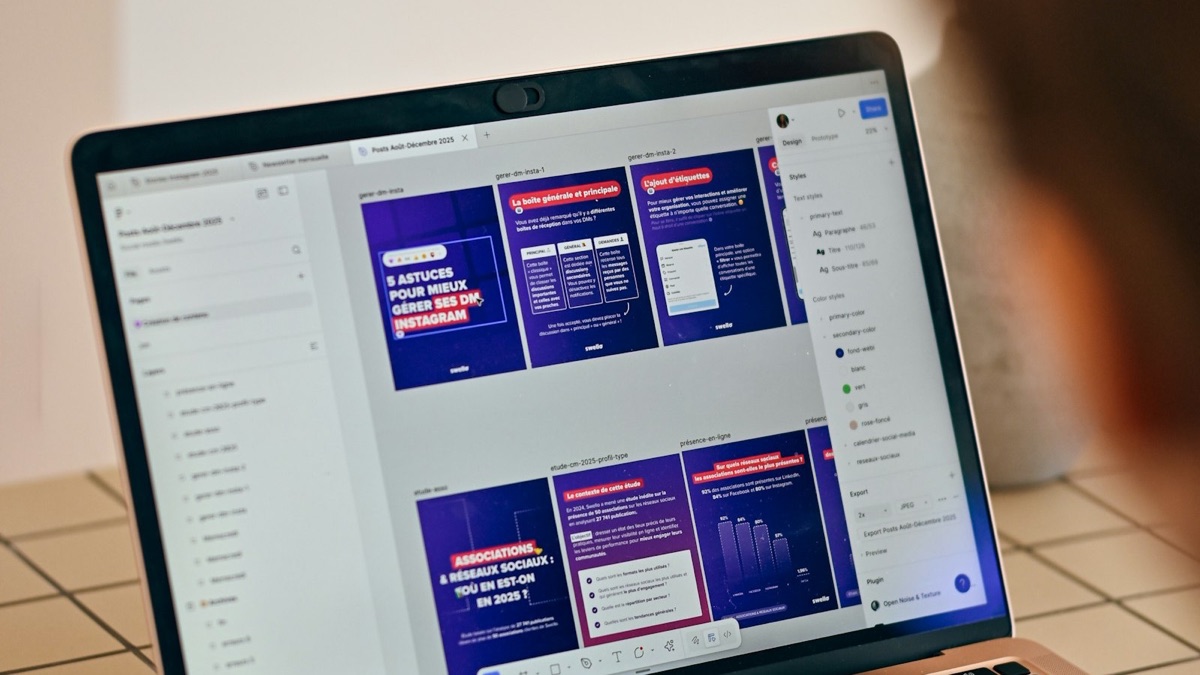
Watch for: some template elements are paid. With many photos, setting the duration of each page takes care. Group your 30–40 photos into chapters first, then use one template throughout so every page shares the same style.
2. Microsoft Clipchamp: free 1080p and the clearest timeline
Clipchamp works on a timeline: photos, music and transitions sit in one line, which makes it easy to see which photo stays too long or where the music is off. Microsoft states that free accounts can export at 480p, 720p and 1080p; 4K, premium stock and advanced features need Microsoft 365 Personal/Family or Clipchamp Premium.
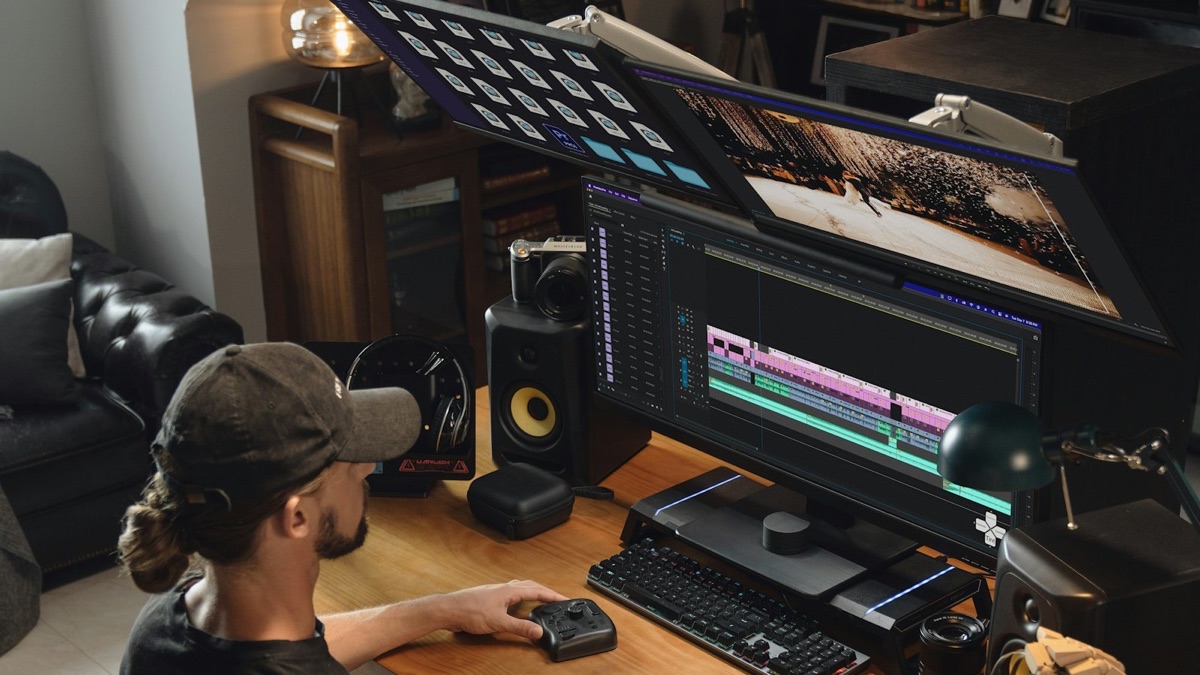
Watch for: a free timeline means you set the pace yourself. On a first attempt, build a 10-photo section and check transitions and volume before doing the whole film.
3. iMovie: the free choice for iPhone and Mac users
iMovie is a free download for iPhone and iPad (iOS/iPadOS 17.6 or later) and Mac. Apple lists 8 themes with matching titles, transitions and music, 20 Storyboards and Magic Movie for automatic edits; you can save to the Photos library at up to 4K 60fps, depending on the device.
Watch for: the themes lean towards everyday home video, so the wedding feel comes from your photos and music. A phone screen is small for ordering dozens of photos; an iPad or Mac makes it easier to check the sequence.
4. CapCut: fast phone templates, but handle the ending
CapCut has many mobile templates: swap in your photos and you have a result quickly, which suits people used to editing on their phone. Its pricing page lists free templates and basic editing on the free plan, and Pro at US$19.99/month (final price after signing in).

Watch for: CapCut’s help centre says a watermark in an exported video usually comes from the template’s automatic ending clip or a template layer, not from the export itself. Before exporting, scroll to the end of the timeline, delete the CapCut ending and check for any layers carrying a logo. Many trend templates move fast, which may not give older guests time to see childhood photos; lengthen each photo’s duration where needed.
5. Animoto: follow a template, make fewer decisions
Animoto is a web slideshow tool: you add photos and text in the template’s order. Its pricing page lists the free plan at 720p with an Animoto watermark and 50 licensed tracks; Basic is US$9/month billed annually (US$19 monthly) for watermark-free 1080p; Professional adds 4K and 3,000 licensed tracks.
Watch for: 1080p is the sensible minimum for reception playback, so budget for a paid plan. It suits couples who would rather pay a monthly fee than learn layout or timelines.
Choose by your situation
- Phone only, photos on the phone: iMovie on iPhone; CapCut on Android, and remember to delete the ending.
- Computer, and you want every page to look designed: Canva.
- Computer, and you want precise control of pacing and music: Clipchamp.
- No time to learn a tool, happy to pay a small monthly fee: Animoto Basic.
- You don’t want to edit or plan shots and pacing yourself: a DIY tool may not suit you; see the alternative below.
From choosing a tool to finishing, allow time for sorting photos, pacing, exporting and a venue test. For a time budget and the trade-offs against hiring someone, read our comparison of wedding slideshow methods.
Export checklist (copy and use)
- Resolution: the file is 1080p (1920×1080) or higher.
- Watermark: play it end to end; no tool logo at the ending or in a corner.
- Photos: every face is complete, not cropped at the top of the head or halfway by the template.
- Text: names, dates and years are spelled correctly.
- Sound: the music starts and ends cleanly at a steady volume; the licence covers reception playback, and you check separately before posting publicly.
- Test: play the final file once on the venue’s own equipment; see our reception playback checklist.
Rather not edit? Another option
If you would rather spend your time choosing photos than learning a tool, Dear Ever is a platform built for wedding slideshows: upload and order your photos; the platform handles the camera moves, pacing and music, and people and content in your photos are never altered. Preview free as many times as you like before paying; the final film is $599 per film, a watermark-free 1080p MP4. See what the plan includes (prices checked 11 October 2026; the current Terms apply).
Less suitable: couples who want to design every page, add lots of captions, voice-over or mixed video clips. Those need a DIY tool above or a custom producer.
Want to see photos with camera moves and music in a full film before deciding to DIY or use a platform?
Watch the full Provence demo Kyoto full demoSources
The official sources below were checked on 11 October 2026; prices and features change, so confirm on each site before you start.
- Canva: video and GIF download limits; Canva plans and pricing
- Microsoft: Clipchamp export formats and resolutions
- App Store: iMovie
- CapCut plans and pricing; CapCut: removing the watermark from template videos
- Animoto plans and pricing
- Scenario photos: Unsplash, free licence (one per tool, illustrating the setting only).