
5 Popular Free Wedding Slideshow Apps:
Canva, Clipchamp, iMovie, CapCut and Animoto
Edited by Dear Ever | Published: | Information checked: October 19, 2026
In this guide
- What can the free version really deliver?
- 1. Canva: make the photos feel like a designed storybook
- 2. Clipchamp: free 1080p with direct timing control
- 3. iMovie: make a first version where your photos already live
- 4. CapCut: start with a phone-first template, then repair the rhythm
- 5. Animoto: fill a template with fewer layout decisions
- Watch the finished style before investing in it
- Still undecided? Choose by these five situations
- After choosing, make a 10-photo test first
- Would you rather choose photos than edit?
- Official sources and check date
Choose a wedding slideshow app around the thing you care about most. Choose Canva for frames, type and layout; Clipchamp for watermark-free 1080p output if you can use a timeline; iMovie if your photos are already on Apple devices. Choose CapCut if you are comfortable adapting mobile templates. Animoto lets you fill a fixed template block by block, but a download-ready film requires a paid plan.
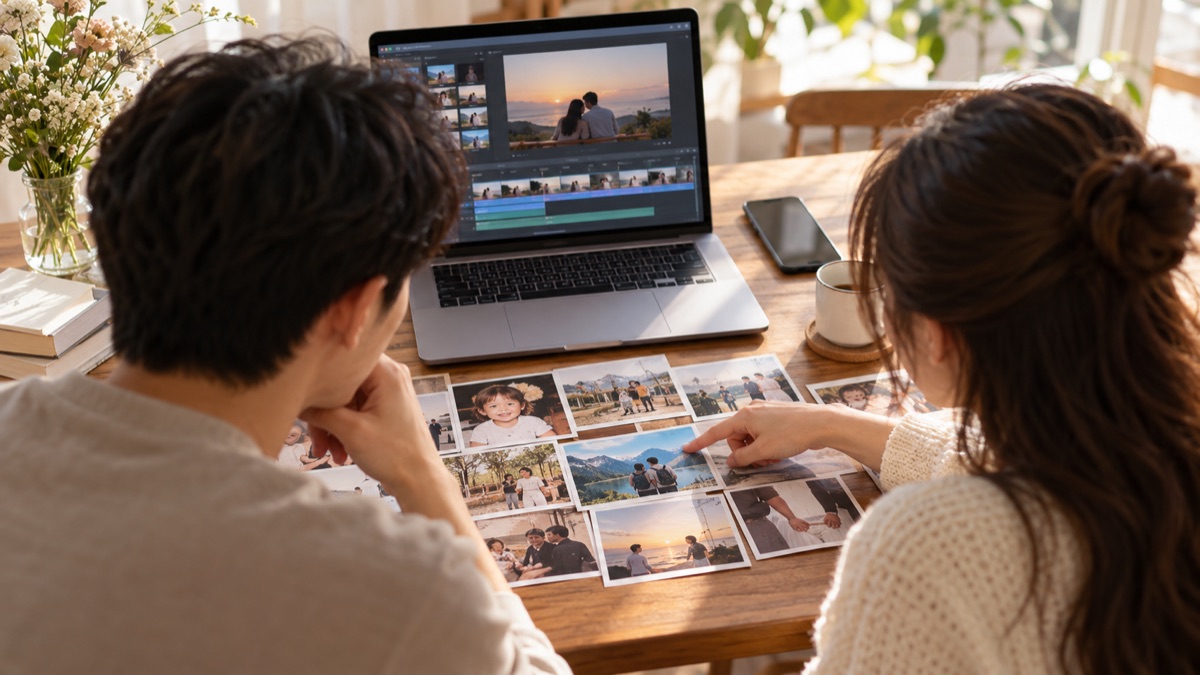
Dear Ever compares personal accounts, your own photos, a 16:9 landscape film and 1080p reception playback. Free-plan limits come from official sources. Difficulty and fit are editorial judgment, not timed hands-on rankings.
What can the free version really deliver?
| Tool / device | Editing trade-off | Free plan and quality | Watermark | When payment starts |
|---|---|---|---|---|
| Canva web, mobile, desktop | Easy to begin and flexible; many photos mean page-by-page adjustment. | Your photos and free assets can download as default 1080p MP4. | Avoid paid-asset watermarks by using owned or free assets. | Pro assets, paid features or changing the free plan’s default MP4 quality setting. |
| Clipchamp desktop browser, Windows | Learn a basic timeline for direct control of photo holds and music. | Personal free plan exports up to 1080p. | Free plan supports watermark-free export. | 4K, premium assets and advanced features; check existing Microsoft 365 benefits first. |
| iMovie iPhone, iPad, Mac | Magic Movie starts quickly; layout control is more limited. | The app is free; 1080p is supported and 4K can be available depending on device and media. | No iMovie brand watermark. | No iMovie subscription; a compatible Apple device is required. |
| CapCut mobile, web, desktop | Templates start quickly; check each photo rhythm, layer and Pro marker. | Basic editing is free; check whether your current version exports the quality you need. | Depends on template, feature and version; check ending, layers and export. | Pro assets, effects and some export options can require an upgrade. |
| Animoto web | Fill template blocks with fewer layout decisions; freedom is limited by the format. | You can create for free, but downloads are not included. Basic or above includes 1080p download. | Free video carries “Made with Animoto”; paid plans remove it. | To download a reception file, share a link or remove branding. |
For a reception film with no software fee, start with Canva, Clipchamp or iMovie. Keep Canva to owned/free assets, stay inside Clipchamp’s free features, export a short CapCut test first, and treat Animoto’s free creation separately from its paid download. See the source list and check the signed-in plan on the day you work.
1. Canva: make the photos feel like a designed storybook
Best for: couples who like frames, years and chapter titles, and want to arrange each page. The strength is a wide choice of layouts; the trade-off is time spent keeping crop, type and hold time consistent across more pages.
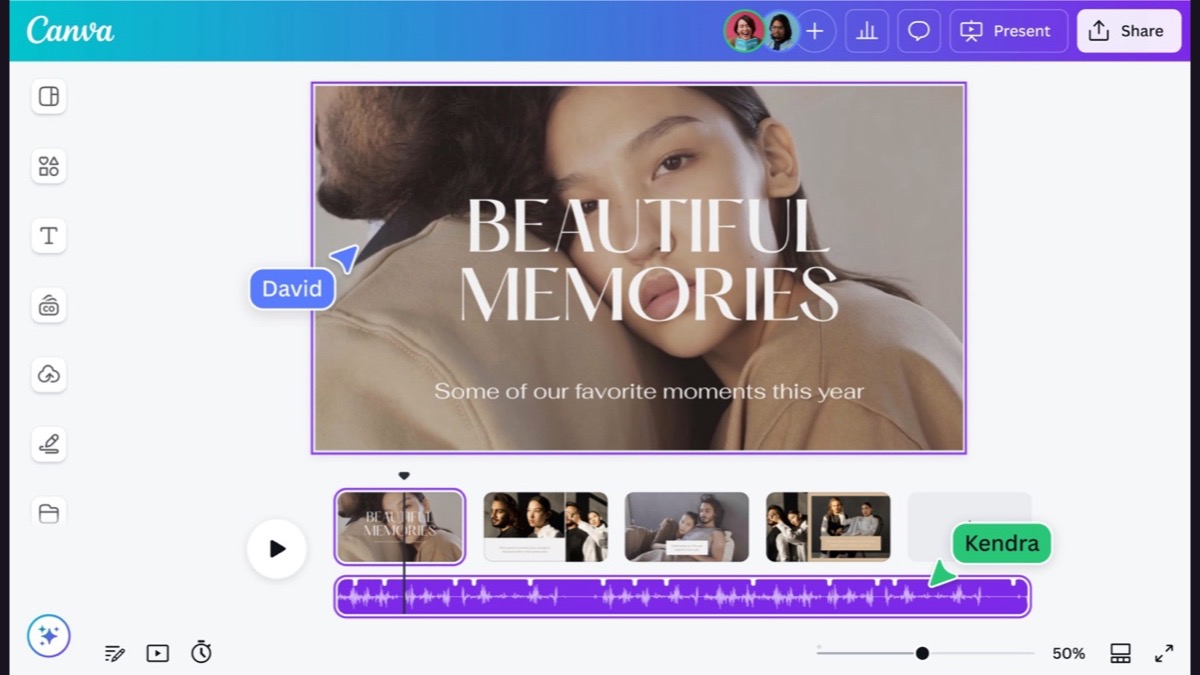
- Create a 16:9 video using a template with free elements.
- Upload photos, replace the template content and check every face crop; keep one type and transition system.
- Adjust holds and music, then download MP4 at the free plan’s default 1080p setting.
Free boundary: your photos and free assets are enough to begin. Pro photos, music or elements may require a licence or upgrade, or leave a watermarked draft. Download a small test early.
Less suitable for: anyone who does not want to design page by page. Start with Canva, or follow the Canva wedding slideshow guide.
2. Clipchamp: free 1080p with direct timing control
Best for: desktop users willing to learn a basic timeline. Photos, text and music sit on separate tracks, so holds and chapter changes can be adjusted precisely. The tool gives control; it does not make every story decision for you.
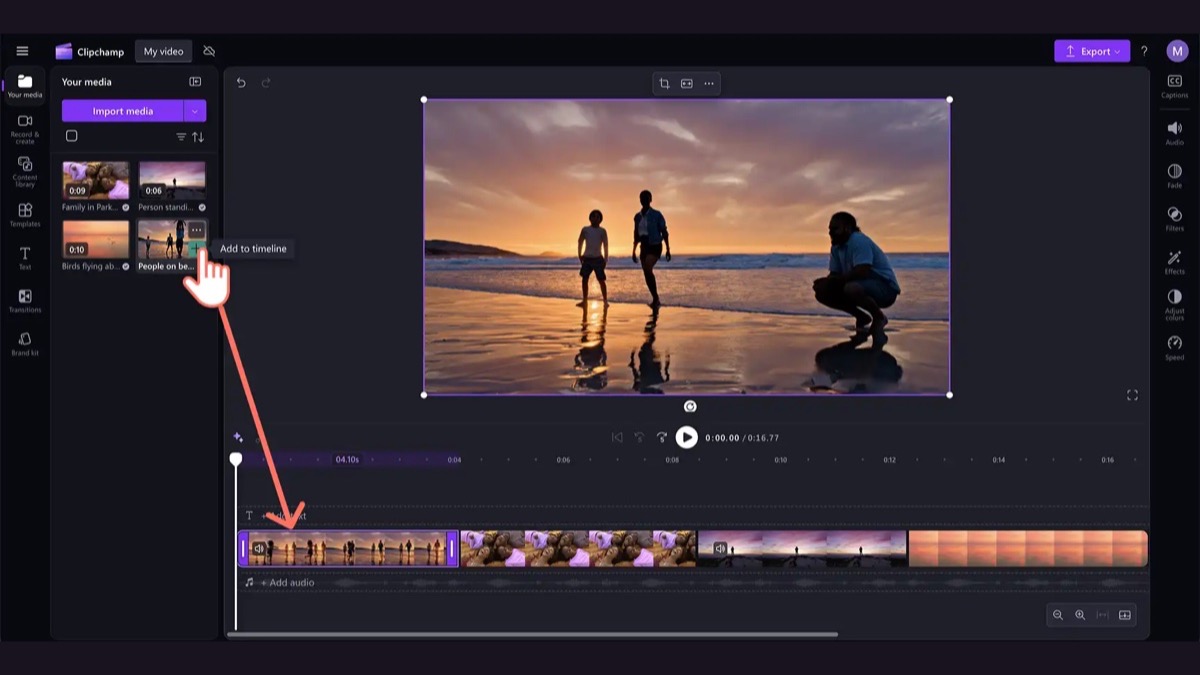
- Open Clipchamp with a personal Microsoft account and create a landscape project.
- Arrange photos in story order, then set holds, one music track and simple transitions.
- Check for premium material, export 1080p and play the downloaded file through once.
Free boundary: personal free plans include core editing, free assets and watermark-free 1080p export. 4K, premium media and some advanced features sit outside it.
Less suitable for: phone-only work or anyone who does not want a timeline. Open Clipchamp.
3. iMovie: make a first version where your photos already live
Best for: people with an iPhone, iPad or Mac who want a simple photo film. Magic Movie on iPhone/iPad can make a first draft from selected material, while Mac projects allow more manual refinement. It is free and needs no separate subscription, but design choice is lighter than Canva.
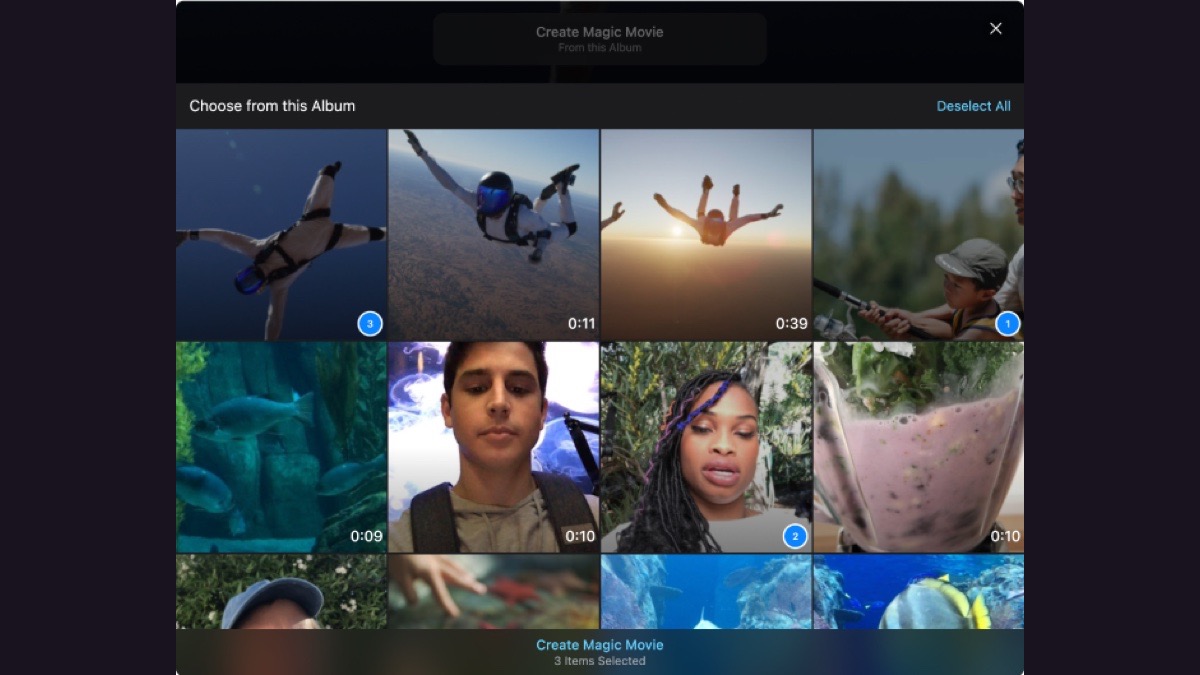
- Create a Magic Movie on iPhone/iPad, or a movie project on Mac, with photos already in story order.
- Check order, movement, face crops, titles and music.
- Export at the venue-ready quality and play the file on the intended device; if the venue asks for MP4, check the file format too.
Free boundary: iMovie is free and has no brand watermark. HD and 4K support depend on device and media; Mac and mobile exports are not identical.
Less suitable for: Windows/Android users or people who need elaborate frames and collages. Get iPhone/iPad iMovie · Get Mac iMovie.
4. CapCut: start with a phone-first template, then repair the rhythm
Best for: people who already edit on a phone and prefer adapting a template. It can quickly show music, text and transitions together; the template’s photo count and pace may not suit your story.
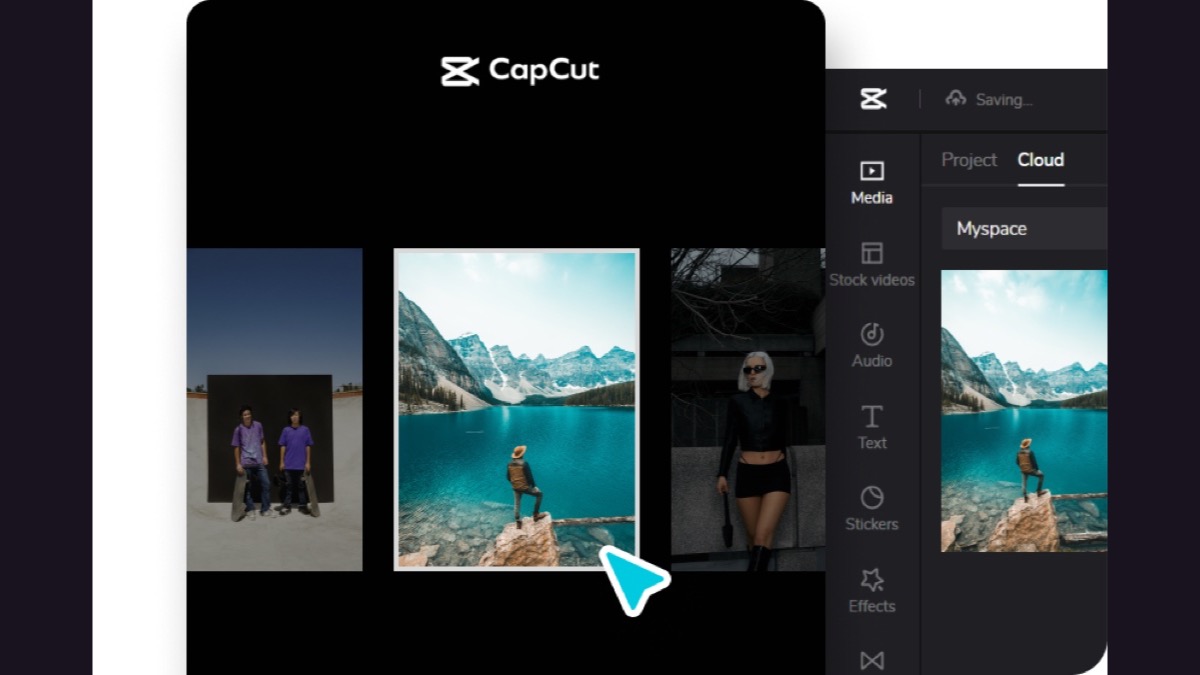
- Create a project, or choose a landscape-friendly photo template and add your own photos.
- Slow childhood and group-photo sections; check text, face crops and every Pro marker.
- Export a short test to confirm 1080p, download and watermark conditions, then inspect the end card and layers.
Free boundary: basic editing is free, but not every template, effect or export option is. Watermarks can come from a template end card or a layer, and some controls can require Pro.
Less suitable for: a hands-off template export with no timing adjustment; guests may not have time to see each photo. Choose a CapCut making route.
5. Animoto: fill a template with fewer layout decisions
Best for: couples who want a fixed format: add photos, write short lines and select music. Its block-based approach is easier to start, but free creation does not mean a free reception-ready download.
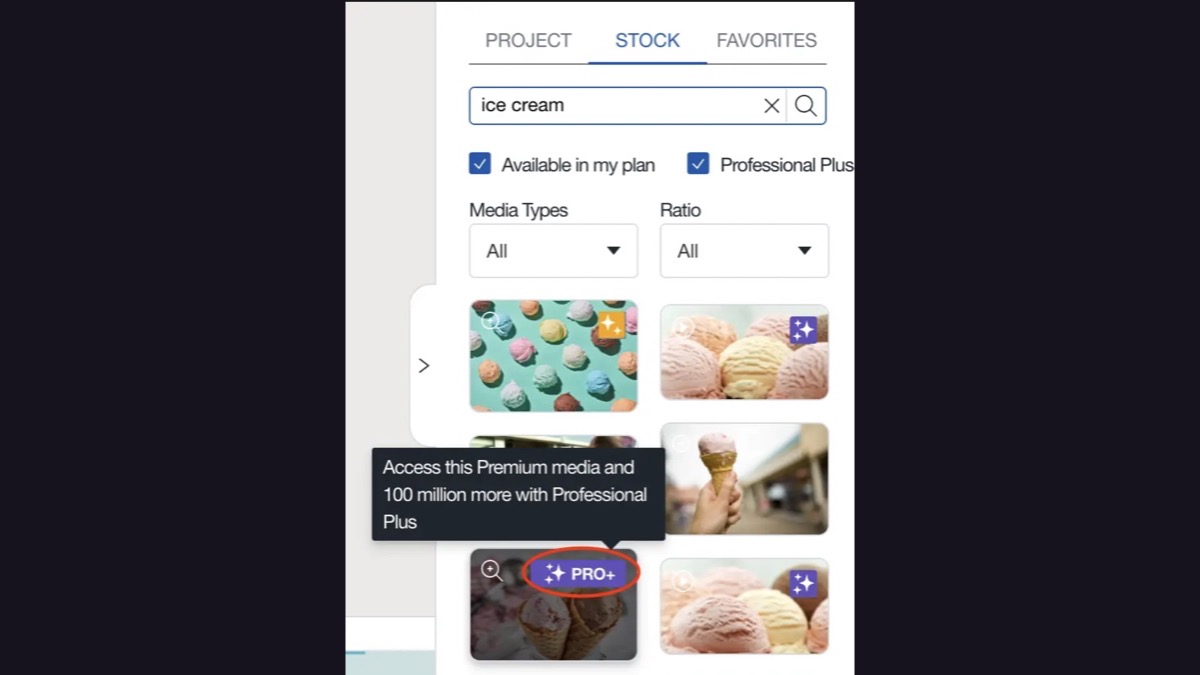
- Create an account and choose a photo-story or wedding template.
- Fill blocks with photos and short lines, then check crop, order and music in a preview.
- Once you like it, confirm the plan that includes download and watermark removal before downloading a 1080p reception file.
Free boundary: the free plan can create watermarked “Made with Animoto” videos; sharing and downloads are paid functions. Basic, Professional and Professional Plus include watermark-free 1080p download.
Less suitable for: anyone committed to a no-cost, watermark-free reception file or fully free-form shot design. Start with Animoto · check download plans.
Watch the finished style before investing in it
Start with Animoto’s official Wedding Slideshow template example. Notice how photos enter, whether text competes for attention and how quickly transitions move. Like the finished style before spending time replacing photos.
Watch the official wedding example on YouTube
For the other tools, see Canva examples, Clipchamp’s official steps and output, Apple iMovie examples and CapCut slideshow examples. They use different source material, so they show style rather than a like-for-like quality ranking.
Still undecided? Choose by these five situations
- Complete beginner who wants a simple attractive start: Canva with a free template.
- Desktop access and a watermark-free 1080p file: Clipchamp with a simple photo timeline.
- Only an iPhone/iPad, with photos in the library: iMovie and Magic Movie first.
- Comfortable with mobile templates and willing to repair pacing: CapCut, after a test export.
- Fewer layout decisions and willing to pay for download: Animoto, preview first and choose a plan later.
For a comparison of making methods, see DIY, commissioned and platform routes. For more export checks, see watermark and quality guidance.
After choosing, make a 10-photo test first
Do not begin with the whole film. Start with two childhood photos between you, two from when you met, four shared-life photos and two current or wedding photos = 10 photos. Make a 30–45 second sample. It is a suggested test length, not a claimed editing time.
- Place photos: set the story first, then inspect landscape, portrait and group-photo crops.
- Add music: play through and check each photo is readable and the opening/ending do not cut abruptly.
- Test export: confirm you can download the needed quality with no tool watermark or leftover template text.
- Then decide: if you like both the result and the workflow, expand it; before the reception, use the venue playback checklist for the file, sound and offline backup.
Music available in a tool is not automatically usable for every event or public upload. Check its permitted use separately.
Would you rather choose photos than edit?
DIY suits people who want to control text, transitions and pacing themselves. If you would rather focus on photo selection, Dear Ever takes your photos and order, then directs camera movement, pace and music; people and photo content are not altered. Preview without limit before paying; the finished version is HK$799 and includes a watermark-free 1080p MP4. See current price and inclusions.
If you need per-shot captions, specified holds or extensive video montage, choose an editing tool or commissioned service with those controls.
See whether this finished style fits before deciding how to make yours.
Watch the full Dear Ever examplePreview for freeOfficial sources and check date
Free features were checked October 19, 2026. Check current signed-in plans before beginning.
- Canva: default MP4 quality and paid-asset limits.
- Microsoft: Clipchamp free plan and upgrades.
- Apple: iMovie devices and features; export and file formats.
- CapCut: template and layer watermarks; Pro upgrade prompts.
- Animoto: free plan; sharing, watermark removal and 1080p download plans.
Related reading
 Ways to make itWedding Slideshow Prices in 2026: 11 Providers Compared. Is Pricier Better?How much is a wedding slideshow? Photo slideshows list at HK$800–1,500, often included with photography; filmed MVs and AI films HK$6,800–13,800. Prices from 11 official sources, why they differ and extra charges.
 Ways to make itHow to Compare Wedding Slideshow Quotes: 4 Hidden Conditions in 7 Published PlansCheck 4 conditions before comparing wedding slideshow quotes: standalone, add-on or package deduction; photos, filming or AI; draft vs final date; revisions. With 7 official sources, method and a free CSV.
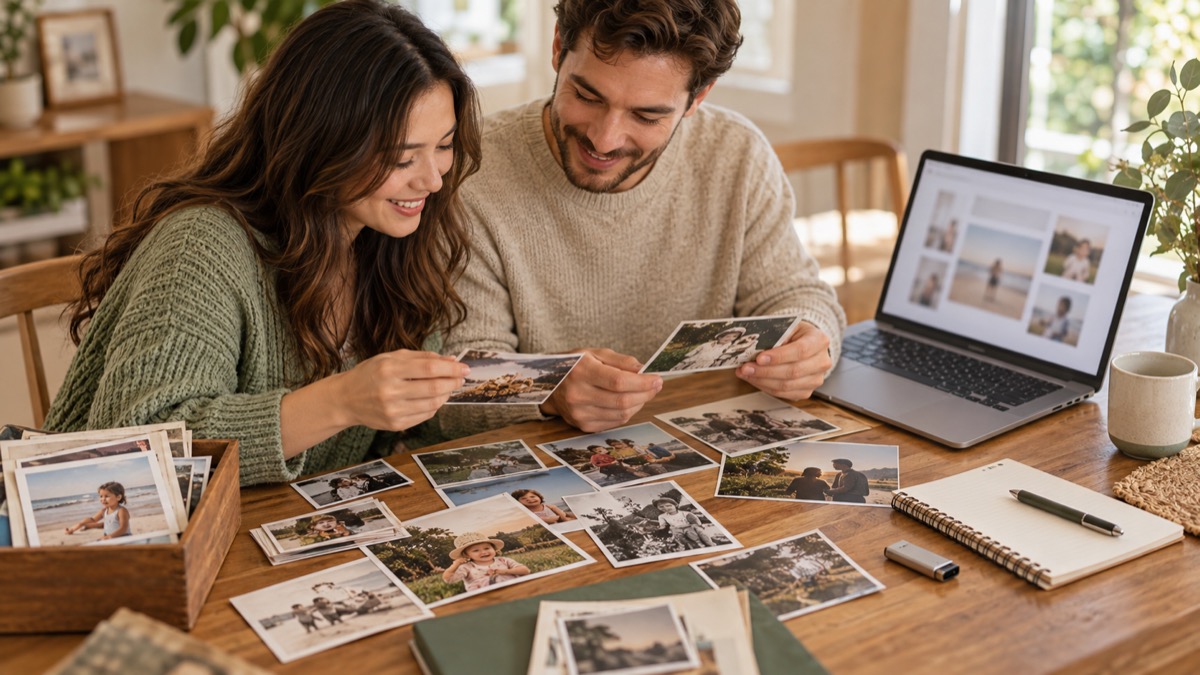 Ways to make itCanva Wedding Slideshow Guide: Turn Photos into a Reception-Ready FilmMake a Canva wedding slideshow from photo selection and 16:9 layout through timing, music, MP4 export and venue testing, with watermark and rights checks.
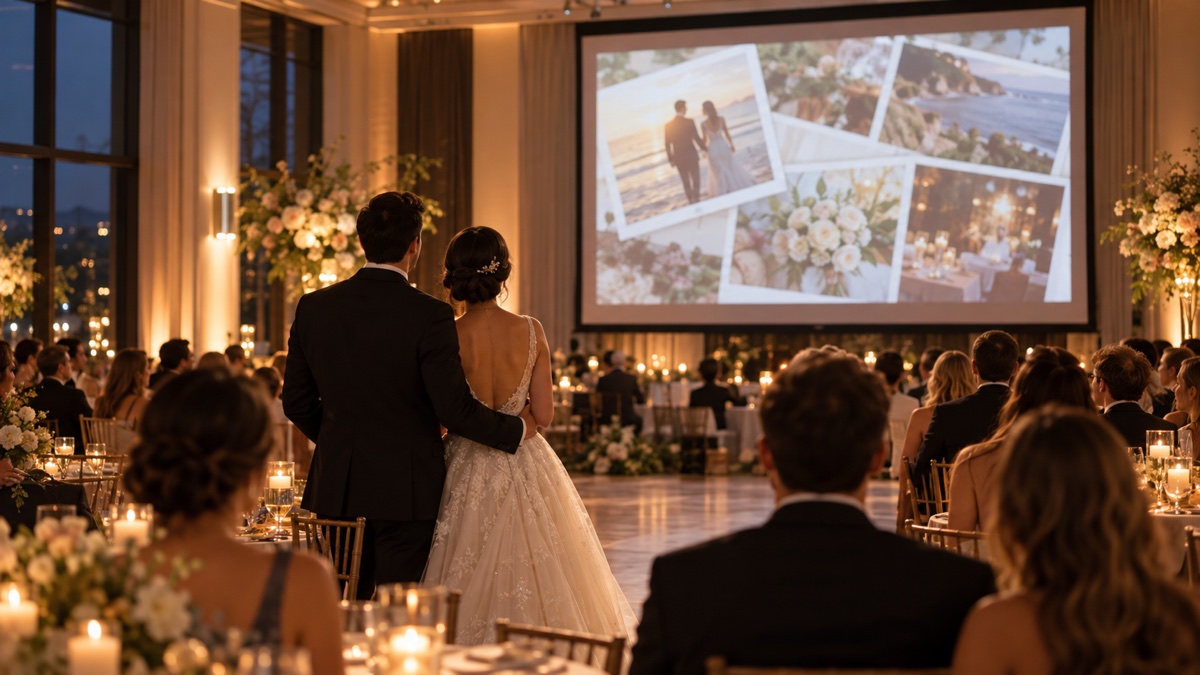 Ways to make itHow to Choose a Wedding Slideshow Company: 7 Quote Checks Before You CompareCompare photo stories, interviews, love MVs and same-day edits by scope, published conditions, delivery and revisions, then use one quote brief to compare like for like.